

I Tested Top AI Video Editors To Find Out The Best Tools For Clipping, Compressing, Colorization, & Stabilization
Producing a video was never complete without an extensive video editing process before the evolution of Artificial Intelligence. Traditional editing process took countless hours of manual work, individuals with high technical expertise, and expensive software. But because of the AI video editing tools this process has become far easier. With the help of modern AI tools, users can trim long footage into shorter clips in seconds and can also perform complex tasks like compression, colorization, and stabilization in just a few clicks.
Likewise, these tools can also perform complex tasks like stabilizing shaky videos, background noise reduction and automatic caption generation.
But with dozens of these AI tools flooding the market, how do you identify the best AI tool for editing for your specific needs?
In this guide, I will test some of the top AI editors in the market and compare then under factors like output quality, ease of use, speed, pricing, and features.
Further, I will also provide you list of tools for your specific needs whether you work as a content creator or business team or professional editor who wants to simply restore old footages.
AI Video Editor Feature Comparison Table
In order to choose the right AI video editor, I compared the leading tools in the market across more than 20 core features. The table below shows whether these tools support essential editing capabilities.
| Feature / Tool | DaVinci Resolve (Neural Engine) | Premiere Pro (Sensei) | OpusClip | Kolorize | VideoProc Converter AI | Winxvideo AI | CapCut | Kapwing |
|---|---|---|---|---|---|---|---|---|
| Scene detection & auto-cutting | ✔️ (Scene Cut Detection) | ✔️ Scene Edit Detection | ✔️ AI clip generation | ❌ Not available | ❌ Not available | ❌ Not available | ✔️ Supported | ✔️ Supported |
| Automatic trimming | ✔️ (Cut Detection) | ✔️ Supported | ✔️ Supported | ❌ Not available | ❌ Not available | ❌ Not available | ✔️ Supported | ✔️ Smart Cut |
| Silence removal | ✔️ Supported | ✔️ Auto Ducking (audio) | ✔️ Supported | ❌ Not available | ❌ Not available | ❌ Not available | ✔️ Supported | ✔️ Smart Cut |
| Multi-track timeline editing | ✔️ (Pro-grade) | ✔️ Pro-grade | ❌ Not available | ❌ Not available | ❌ Not available | ❌ Not available | ✔️ (basic) | ✔️ Supported |
| Basic transitions & overlays | ✔️ Supported | ✔️ Supported | ✔️ Supported | ❌ Not available | ✔️ (basic) | ❌ Not available | ✔️ Supported | ✔️ Supported |
| Auto-reframe | ✔️ (Smart Reframe) | ✔️ Auto Reframe | ✔️ Supported | ❌ Not available | ❌ Not available | ❌ Not available | ✔️ Supported | ✔️ Supported |
| Motion tracking | ✔️ (Fusion / Neural Engine) | ✔️ Mask Tracking | ✔️ Supported | ❌ Not available | ❌ Not available | ❌ Not available | ✔️ Supported | ✔️ Supported |
| AI subtitles & transcription | ✔️ Supported | ✔️ Speech-to-Text | ✔️ Supported | ❌ Not available | ❌ Not available | ❌ Not available | ✔️ Supported | ✔️ Supported |
| Background remover (no green screen) | ✔️ Supported | ✔️ (Sensei masking) | ❌ Not available | ❌ Not available | ❌ Not available | ❌ Not available | ✔️ Supported | ✔️ Supported |
| Text-based editing | ✔️ Supported | ✔️ Text-based Editing | ✔️ Supported | ❌ Not available | ❌ Not available | ❌ Not available | ✔️ Supported | ✔️ Supported |
| AI object removal / inpainting | ✔️ (Neural Object Removal) | ✔️ Content-Aware Fill | ❌ Not available | ❌ Not available | ❌ Not available | ❌ Not available | ✔️ Supported | ✔️ (For Image Only For Now) |
| Auto B-roll suggestion/insertion | ❌ Not Available | ❌ Not available | ✔️ AI B-roll | ❌ Not available | ❌ Not available | ❌ Not available | ❌ Not available | ✔️ AI B-roll |
| AI-generated effects / style transfer | ✔️ (Color Match, Neural Filters) | ✔️ Color Match | ❌ Not available | ❌ Not available | ✔️ Upscaler + Enhance | ✔️ Enhance | ✔️ (filters) | ✔️ Filters |
| Noise reduction | ✔️ (Neural Noise Reduction) | ✔️ Essential Sound | ✔️ Supported | ❌ Not available | ✔️ Denoise AI | ✔️ Denoise | ✔️ Supported | ✔️ (basic) |
| Voice enhancement / clean-up | ✔️ (Neural Voice Isolation) | ✔️ Speech Enhance | ✔️ Supported | ❌ Not available | ✔️ Supported | ✔️ Supported | ✔️ Supported | ✔️ Supported |
| AI dubbing / voiceover | ✔️ Supported | ❌ Not available | ✔️ Supported | ❌ Not available | ❌ Not available | ❌ Not available | ✔️ (text-to-speech) | ✔️ Supported |
| Auto music sync with video | ✔️ Supported | ✔️ Remix | ✔️ Supported | ❌ Not available | ❌ Not available | ✔️ Supported | ✔️ Supported | ✔️ Supported |
| AI video compressor | ❌ (Not AI-Powered Compressor) | ❌ Not available | ✔️ Supported | ❌ Not available | ✔️ Compression AI | ✔️ Compressor | ✔️ Supported | ✔️ Supported |
| AI colorizer | ❌ Not Available | ❌ Not available | ❌ Not available | ✔️ (core function) | ✔️ (Image Only) | ✔️ Supported | ✔️ (Not Very Effective) | ❌ Not available |
| AI stabilizer | ✔️ (Tracking + Warp Stabilizer) | ✔️ Warp Stabilizer | ❌ Not available | ❌ Not available | ✔️ Supported | ✔️ Core Tool | ✔️ Supported | ✔️ Supported |
| AI upscaler | ✔️ (Super Scale) | ❌ Not available | ❌ Not available | ❌ Not available | ✔️ 4K/8K Upscale | ✔️ 4K/8K Upscale | ✔️ Supported | ✔️ Supported |
DaVinci Resolve Neural Engine: Best AI Video Editor (Overall)
After spending hours using and consulting numerous professional video editors, I finally picked DaVinci Resolve as the best overall AI-powered video editor, specifically for its Neural Engine. The tool provides features like Magic Mask, which can perform flawless subject isolation and rotoscoping in seconds. It also has Voice Isolation for dialogue cleaning, and Super Scale which lets user transform HD footage into sharp 4K or even 8K footages. The software also includes Speed Warp slow-motion functionality and Smart Reframe for social media formats and Scene Cut Detection which reduces manual editing time to several hours.
Who is it best for? Despite its AI features that have significantly eased the editing process, DaVinci Resolve mainly targets professional editors, filmmakers and businesses wanting an all-in-one solution. Lately, this tool is also famous among serious content creators who need professional-quality results. Note: Only choose if you need technical precision over beginner-friendly interfaces.
My Experience Using DaVinci Resolve Neural Engine
Ease of Use: DaVinci Resolve has an easy to use AI features. However, the users have to go through a learning process to use its professional interface.
Performance/Speed: The AI processing in Da Vinci Resolve requires at least 8GB of VRAM to function properly. It is hardware dependent tool but has been perfectly optimized. It can easily deliver fast, stable, and real-time AI editing, with a modern NVIDIA RTX card or Apple Silicon chip, which make it one of the most efficient pro-grade AI editors available.
Pricing/Value: It is undoubtedly one value for money tool. Not only it provides a powerful free version but it also offers a lifetime studio license for $295.
Verdict: The DaVinci Resolve Neural Engine functions as a complete AI video editing software which provides professionals and content creators with advanced color grading tools, VFX capabilities, audio editing functions, and built-in AI technology that removes production hurdles to enhance creative work.
Adobe Premiere Pro (Sensei) – Best for Creative Cloud Integration
Premiere Pro’s Adobe Sensei is another AI editing tool that that provides outstanding performance through its AI automation withing standard industry workflows. Within its familiar interface, you can entirely automate repetitive tasks in video editing like transcription, auto-reframing, audio ducking in just a few clicks.
Adobe Sensei is compatible across platforms like Windows, macOS, and Linux. It is also perfectly optimized for Apple Silicon and runs efficiently on Windows with balanced CPU/GPU utilization.
Who is it best for? It is a go-to option for editors who want a professional-grade functionality along with an user-friendly interface. The tool is also perfect for seamless After Effects and Audition integration.
My Experience With Adobe Premiere Pro (Sensei)
Output Quality: The tool has some useful features like ‘Auto Reframe,’ audio clean-up tool along with many others that simply enables the platform to generate excellent output.
Ease of Use: Considering its professional standards, it is more beginner-friendly than its competitors. It has a familiar Adobe interface, customizable panels, and intuitive AI features that requires just a few clicks to generate results.
Performance/Speed: Adobe Premiere Pro is one of the best when it comes to solid performance with good hardware balance. It has a fast GPU-accelerated rendering. However, some users see occasional lag in complex, multi-layered projects.
Pricing/Value: It has a subscription-based model $22.99/month standalone or $59.99/month for full Creative Cloud suite. Compared to its competitors, it has higher long-term costs.
Verdicts: Premiere Pro is the best AI editor for those who want a Creative Cloud integration, & emerging generative AI features like Generative Extend. It is highly recommended to those who want familiar editing experience and adobe ecosystem.
OpusClip: The Best AI Video Clippers/Trimmers
OpusClip is the best AI-powered video clipping and trimming tool in the market. It uses advanced scene detection, auto-trimming, and silence removal to transform lengthy videos into short viral clips. This tool has a unique feature that analyses the ‘Virality Score’ of a scene based on the speech, pacing, & engagement cues to segment clips that are likely to perform better on social media platforms like TikTok, Instagram, and YouTube shorts.
Who is it best for? OpusClip is best for content creators repurposing long-form content, social media managers handling podcast/webinar clips, businesses maximizing content ROI, and educators creating digestible lesson snippets.
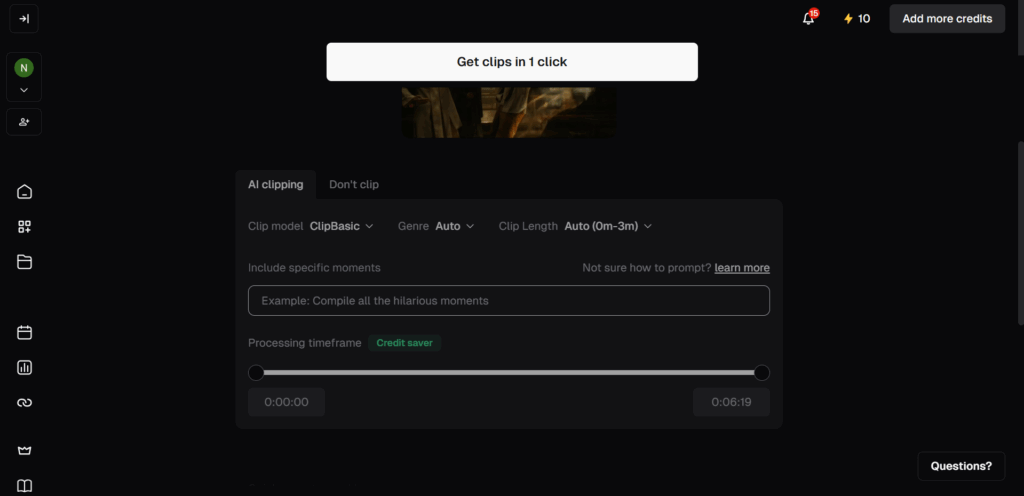
 OpusClip Interface Simple And Easy To Use
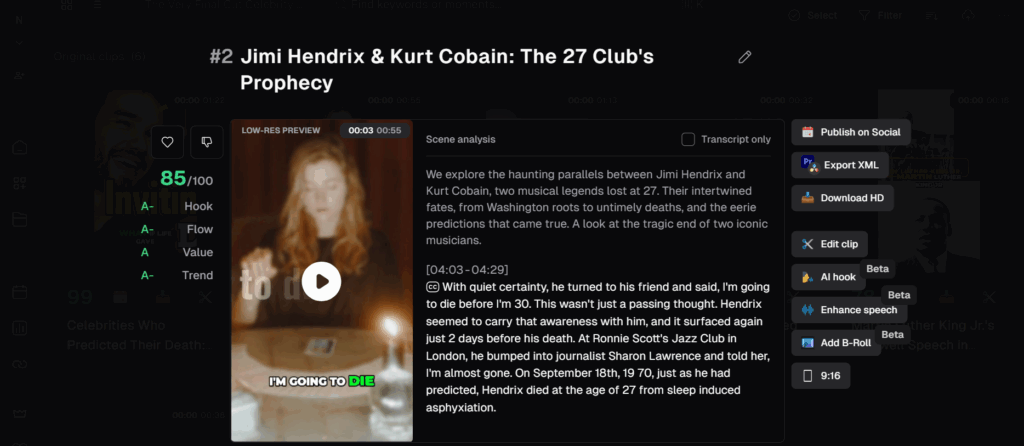
- OpusClip Provids The Option To Edit The Generated Clips
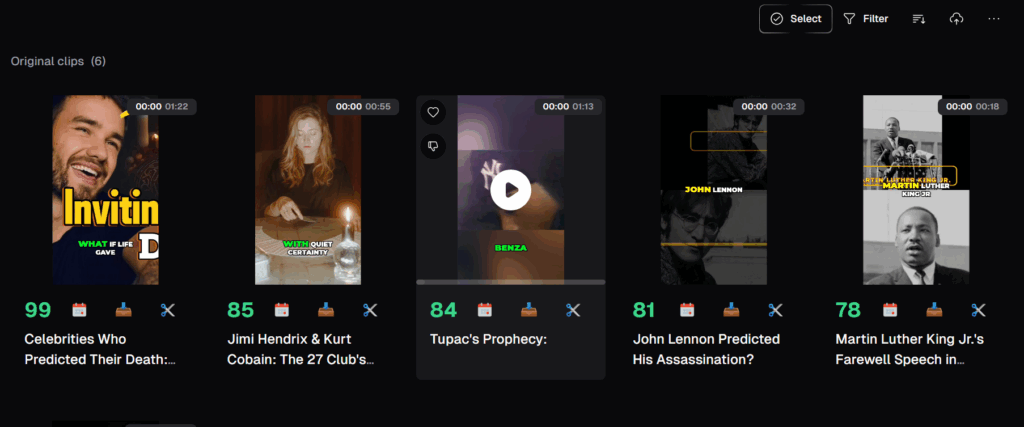
- Automatically Generated Clips By OpusClip
My Experience With OpusClip
Output Quality: OpusClip outputs short-form videos with accurate auto-captions, smart reframe, effective AI B-roll addition. Though the results are publish ready, it does not meet the precision of professional editors.
Ease of Use: OpusClip is extremely user friendly and requires little to no learning curve. All you got to do is upload the footage and provide the text-based editing instructions.
Performance/Speed: The tool is extremely fast compared to manual clipping. It can perform AI analysis and batch clip generation significantly faster than traditional editing methodology. However, the processing time may vary with video length.
Pricing/Value: OpusClip has a free plan with watermarks and limited credits. Similarly, it offers a starter plan at $15/month and Pro plan at $29/month which provides users with ‘Virality Score’ brand templates and unlimited clip access.
Verdicts: If you want a tool to automate the process of identifying and automatically clipping long videos to short clips, OpusClip is the best.
Kolorize.cc: The Best AI Video Colorizer
Kolorize.cc is the best colorization tool that provides the perfect balance of accuracy, speed, and ease of use. Its AI-powered technology analyzes each frame carefully, adding realistic and consistent colors to objects, backgrounds, and faces throughout the video, to colorize old black and white footage.
Test Clip
So, to test Kolorize’s colorization capability, i used a old black and white video of a busy street of a city. I used the free version of the tool, which offers limited frames per second of video output. Here is the result:
My Experience Using Kolorize
Output Quality: The colorization is highly accurate with smooth transitions between frames. Similarly, its noise reduction and face restoration features boost overall video clarity. Though the overall quality is also dependent on the original video, Kolorize is consistent at delivering impressive results.
Ease of Use: Kolorize has an extremely simple user interface. Almost everything is automated and you don’t have to have any technical knowledge. Just upload your black-and-white video, and the AI handles the rest with a clean colorized video.
Performance/Speed: It processes videos quickly thanks to efficient cloud computing. However, larger or complex files may take a bit longer.
Pricing: The tool offers a credit-based system starting at $0.30 per credit, with affordable pricing and a free trial to get started. A great alternative to costly professional services.
Verdict: Kolorize.cc provides an excellent combination of colorization and restoration feature along with a strong data security, which makes it my top recommendation for AI video colorization tool.
VideoProc Converter AI: The Best AI Video Compressors
VideoProc Converter AI is one of the best AI video compressors in the market. With its ai driven compression algorithms, VideoProc can reduce the file size by up to 90% without any loss of quality across all file formats like MP4, AVI, MKV, or MOV.
Who is it best for? It is very useful for anyone who shoots footage on devices like DJI drones, GoPro cameras, DSLRs, and iPhones that record significantly higher size videos. Also, it is perfect for users wanting professional compression without technical complexity.
My Experience Using VideoProc Converter AI
Output Quality: VideoProc delivers a superior quality output. Users can compress from SD to 8K resolutions with minimal artifacts, outperforming standard compression methods significantly.
Ease of Use: It has an Intuitive interface with preset optimization profiles for different platforms (YouTube, social media, web). While the compression process can be completed with just one-click, it also has customizable settings for advanced users.
Performance/Speed Exceptionally fast processing thanks to hardware acceleration across all major chip architectures. Handles large 4K/8K files efficiently while maintaining low CPU usage, enabling background operation without system slowdowns.
Pricing/Value: It offers free trial with 5-minute video limit and watermarks. The paid plans start at $25.95/year for full features. Users can also get one-time lifetime license.
Verdict: VideoProc Converter AI is the first choice when it comes to AI-based compressor because of its quick processing with excellent quality results at smaller file sizes.
WinxVideo AI: The Best AI Video Stabilizer
WinxVideo AI is the best AI video stabilizer in 2026. I tested the tool with raw footage from GoPros, DJI drones, DSLRs, and even smartphones and the tool proved to be extremely effective in drastically reducing the shakiness of the footage. Its AI-powered stabilization engine offers multiple modes and presets for controlling stabilization intensity and cropping, though effectiveness varies with severity of shakiness.
Who is it best for? It is best for vloggers with shaky footage, sports enthusiasts using action cameras, gamers recording gameplay, and content creators working with handheld device footage, all can effectly use WinxVideo AI for better video output. The tool can be Ideal for users who need basic-to-moderate stabilization without going through a complex professional editing process.
WinxVIdeo AI Test Clip
My Experience Using WinxVideo AI
Output Quality: The output quality of WinxVideo AI primarily depends on the severity of shakiness of the footage. As per my observation, the tool performs quite well with light-to-moderate shakiness but shows limitations with heavily shaky content. Also the output is heavily dependent on original resolution, motion complexity, and stabilization settings applied.
Ease of Use: User interface is extremely friendly with simple preset options however, for an optimal result, playing with manual setting and experimenting is required with each footage.
Pricing/Value: WinxVideo AI offers a Free trial that processes 5 minutes of video. You can get a lifetime license at $45.95 in 2025, which also includes a comprehensive video enhancement suite beyond just stabilization, solid value for desktop users.
Verdicts: WinxVideo AI is the definitive choice for all stabilization needs because of its optimal effectiveness. While the tool also combines stabilization with upscaling, frame interpolation, and noise reduction in one package, those do not seem very effective. In case you are looking for a good upscaler, you can check out our best ai upscaler comparison.
CapCut: The Best AI VIdeo Editing Tool For Social Media
CapCut is definitely at the top when it comes to the best AI video editor specifically for social media. Developed by TikTok’s parent company ByteDance, CapCut is extremely lightweight and packs in all the features required for a social media content creator, be it tiktoker, instagrammar and even youtuber. It features template-based editing and even offers advanced features like background remover, auto-captions, auto reframe, & export in 4k. One extra benefit with this app is that you get a built-in AI video translation tool, which allows you to translate and dub video directly inside the editor.
Who is it best for? Capcut is extremely lightweight making it the first choice for iOS and Android. Likewise, it also has a powerful free and paid desktop versions for both Windows and macOS and also a web editor.
My Experience Using CapCut
Ease of Use: It is exceptionally user-friendly with Intuitive mobile-first interface which allows complete video editing without prior experience. It’s one-tap AI features like auto-captions and background removal make complex tasks effortless and fast.
Performance/Speed: The AI features of CapCut including ‘Auto Cut’ and background removal operate at high speeds. However, the application experiences occasional slowdowns when users perform complex editing tasks with large files.
Pricing/Value: CapCut offers a free plan with essential editing tools, 1080p exports, a watermark, and a limited number of weekly exports. Paid options include Standard, Pro, and Teams tiers, at the pricing of $5.99, $19.99 and $24.99 per month respectively. A 7-day free Pro trial is also available if you wish to try before buying.
Verdicts: Capcut is extremely focused at its core principle of catering to social media creator and does it quite perfectly. Direct pipeline to TikTok trends gives CapCut first access to viral effects and templates. Its AI beginner friendly interface and speed over technical perfection, making it the best social media editing tool.
Kapwing – Best Browser-Based AI Editor for Teams
After testing numerous browser-based editors, Kapwing stands out as the most comprehensive cloud-based AI video editor. It provides powerful automation features like Smart Cut and auto-subtitling with Google Docs-style collaboration which makes it perfect for teams who need professional results without desktop software complexity.
Kapwing is a pure browser-based solution that works on any device with internet connection. No downloads required. It is accessible on Windows, macOS, Chromebooks, tablets, and even smartphones through web browsers.
Who is it best for? Kapwing is best for social media managers, marketing teams, educators, and collaborative creators who prioritize convenience over advanced technical control. It is Ideal for beginners wanting professional-looking results quickly.

My Experience Using Kapwing
Output Quality: Good quality for social media content. Kapwing’s Pro plan supports 4K exports, though performance can lag with large files. It also has AI-generated subtitles feature which is highly accurate, and Content repurposing creates professional social clips automatically.
Ease of Use: It has an intuitive timeline interface, one-click AI features, and text-based video editing that make complex tasks easier to accomplish.
Performance/Speed: Browser-dependent performance can slow with large files or complex projects. The tool requires stable internet connection as processing speed varies based on your connection and computer specs.
Pricing/Value: The free version of the tool includes watermark and video export at 720p resolution only. The Pro plan at $16/month annually provides watermark removal and 4K export capabilities and Brand Kits and expanded AI functionality which makes it suitable for team collaboration needs.
Verdict: Kapwing is one of the best AI powered editing tool. It can performs complex editing task with utmost ease and in a click of a button.
Honorable Mentions: Tools That Nearly Made the Cut
Descript – Underlord (Agentic Co-Pilot): Descript’s Underlord is an efficient AI editing tool that can analyze transcripts, audio, and ‘vibe-edit’ long interviews into watchable cuts. The tool is also good at performing tasks like silence removal, narrative condensing, and audio cleanup efficiently. One of the most interesting features that descript offers is the eye contact feature which uses AI to make it appear like you are looking directly at the camera even if you are looking at the script. You can check out my tutorial if you want to learn how to correct eye alignment using Descript’s eye contact feature. Overall, it’s an impressive agentic editor for speed and structure.
Eddie AI: Eddie AI is a good editing tool that can automate common editing tasks such as footage logging, transcription, and creating rough cuts based on a basic story structure. In my tests, it generated a full transcript, a text summary, and an initial draft edit within a few minutes. The draft only needed a few manual adjustments. Eddie is useful for speeding up the first stage of editing, but it still requires an editor to refine the final structure and pacing.
Watch Our Quick Video Summary
If you prefer a visual summary, the video below walks through the same research covered in this comparison. It explains how modern AI video editors differ from traditional editing workflows, where automation helps most, and which tools make sense for different use cases.
